Importing a .nk2 file has changed in Outlook 2010.
http://support.microsoft.com/kb/980542
Friday, January 14, 2011

Friday, September 3, 2010
Hyper-V with Windows Deployment Services (WDS)
So trying to PXE Boot from a newly created VM in Hyper-V wasn't as straight forward as it was supposed to be.
This all due to the way Hyper-V displays its GUID.

Entering the GUID (as-is) will not work if you are creating a prestaged computer in Active Directory. The reason for this is that the GUID displayed by Hyper-V is in GUID string form. Normally during POST boot screens the GUID displayed is in Octet string form, but Microsoft decided to switch it up making users scratching their heads.
So with Hyper-V, make sure you add the brackets when entering the GUID for created the prestaged computer.
i.e. {0AE97CBC-FFDC-45A2-88C1-D7764EB5DA71}
This all due to the way Hyper-V displays its GUID.

Entering the GUID (as-is) will not work if you are creating a prestaged computer in Active Directory. The reason for this is that the GUID displayed by Hyper-V is in GUID string form. Normally during POST boot screens the GUID displayed is in Octet string form, but Microsoft decided to switch it up making users scratching their heads.
So with Hyper-V, make sure you add the brackets when entering the GUID for created the prestaged computer.
i.e. {0AE97CBC-FFDC-45A2-88C1-D7764EB5DA71}
Monday, August 16, 2010
Can't view PDF on the web
Possible fixes from Adobe:
http://kb2.adobe.com/cps/328/328233.html#main_Enable AdobePDF.dll
http://kb2.adobe.com/cps/328/328233.html#main_Enable AdobePDF.dll
Sunday, February 14, 2010
Windows 7 / Windows 2008 Administrative Shares Access
I had to search around for the answer for this. But in Windows 7 / Windows 2008, the administrative share access is taken away. I found out when trying to access certain computers using \\computername\c$ and no matter what credentials I provided nothing worked. The workaround is below.
http://support.microsoft.com/kb/947232
Locate and then click the following registry subkey:
HKEY_LOCAL_MACHINE\SOFTWARE\Microsoft\Windows\CurrentVersion\Policies\System
On the Edit menu, point to New, and then click DWORD (32-bit) Value.
Type LocalAccountTokenFilterPolicy to name the new entry, and then press ENTER.
Right-click LocalAccountTokenFilterPolicy, and then click Modify.
In the Value data box, type 1, and then click OK.
Exit Registry Editor.
The LocalAccountTokenFilterPolicy entry in the registry can have a value of 0 or 1. These values set the behavior of the entry as follows:
0 = build a filtered token
This is the default value. The administrator credentials are removed. These credentials are required for remote administration of the print drivers.
1 = build an elevated token
This value enables the remote administration of the print drivers on a server within a workgroup
http://support.microsoft.com/kb/947232
Locate and then click the following registry subkey:
HKEY_LOCAL_MACHINE\SOFTWARE\Microsoft\Windows\CurrentVersion\Policies\System
On the Edit menu, point to New, and then click DWORD (32-bit) Value.
Type LocalAccountTokenFilterPolicy to name the new entry, and then press ENTER.
Right-click LocalAccountTokenFilterPolicy, and then click Modify.
In the Value data box, type 1, and then click OK.
Exit Registry Editor.
The LocalAccountTokenFilterPolicy entry in the registry can have a value of 0 or 1. These values set the behavior of the entry as follows:
0 = build a filtered token
This is the default value. The administrator credentials are removed. These credentials are required for remote administration of the print drivers.
1 = build an elevated token
This value enables the remote administration of the print drivers on a server within a workgroup
Wednesday, February 10, 2010
Basic Access Query Tips
Here's a useful page on some quick tips when performing MS Access queries.
http://www.fontstuff.com/access/acctut06.htm
http://www.fontstuff.com/access/acctut06.htm
Thursday, January 28, 2010
Microsoft Office Outlook autocomplete transfer
To transfer the autocomplete data from one computer to the next follow the link below. For Vista or Windows 7 you just need to go to the same directory but instead of "Documents and Settings" you have "Users".
http://office.microsoft.com/en-us/outlook/HA011394511033.aspx
http://office.microsoft.com/en-us/outlook/HA011394511033.aspx
Monday, October 5, 2009
Wednesday, June 17, 2009
Repair / Clean print spooler
Read this article to help fix a problem where the print spooler does not start or keeps stopping after each start.
It says for XP but I have tested this on Vista and it corrected the problem I had.
http://support.microsoft.com/kb/324757
You can also use cleanspl.exe from Windows 2003 Resource Kit but this does not work for Vista.
It says for XP but I have tested this on Vista and it corrected the problem I had.
http://support.microsoft.com/kb/324757
You can also use cleanspl.exe from Windows 2003 Resource Kit but this does not work for Vista.
Thursday, April 30, 2009
What happens when you run "Repair" on a network connection.
1. Attempt to renew DHCP Lease
2. Flushes ARP cache (arp -d *)
3. Flushes NetBIOS cache (nbtstat -R)
4. Flushes DNS cache (ipconfig /flushdns)
5. Re-Register NetBIOS name and IP address with WINS (nbtstat -RR)
6. Re-Register computer name and IP address with DNS (ipconfig /registerdns)
2. Flushes ARP cache (arp -d *)
3. Flushes NetBIOS cache (nbtstat -R)
4. Flushes DNS cache (ipconfig /flushdns)
5. Re-Register NetBIOS name and IP address with WINS (nbtstat -RR)
6. Re-Register computer name and IP address with DNS (ipconfig /registerdns)
Thursday, February 26, 2009
Absolute positioning in a CSS container
Now this was a real pain to figure out as there wasn't much documentation on it. In order to successfully utilize absolute positioning inside a CSS container where the position will be relative to the container and not the window you will need to define the following:
#container {
position: relative
}
This will ensure that any object placed within this container will be positioned relative to it.
<div id="container">
...
...
...
</div>
#container {
position: relative
}
This will ensure that any object placed within this container will be positioned relative to it.
<div id="container">
...
...
...
</div>
Wednesday, January 21, 2009
IIS 6 - Install IIS using an answer file
Old stuff but I keep forgetting the command line everytime I do it again.
http://www.microsoft.com/technet/prodtechnol/WindowsServer2003/Library/IIS/750d3137-462c-491d-b6c7-5f370d7f26cd.mspx?mfr=true
http://www.microsoft.com/technet/prodtechnol/WindowsServer2003/Library/IIS/750d3137-462c-491d-b6c7-5f370d7f26cd.mspx?mfr=true
Friday, December 19, 2008
Using Report Services on a SharePoint 2007 site
First you will need to install the reporting services add-on for SharePoint Server 2007 if you haven't already.
Second, the web parts that will be required for SharePoint to access Report Services will need to be installed.
By default, the webparts are installed with SQL Server 2005 and are located in ..\Microsoft SQL Server\90\Tools\Reporting Services\SharePoint\RSWebParts.cab.
You will need to copy this file over to front end web server and run the following command:
stsadm.exe –o addwppack –filename “<path to file>\rswebparts.cab” -globalinstall
Finally, in order to properly get the Web Parts just installed to function on a MOSS2007 setup with Reporting Services you will need to make a change on the site's web.config file. The trust level must be changed to WSS_Medium.
<trust level="WSS_Medium" originalurl="">
Second, the web parts that will be required for SharePoint to access Report Services will need to be installed.
By default, the webparts are installed with SQL Server 2005 and are located in ..\Microsoft SQL Server\90\Tools\Reporting Services\SharePoint\RSWebParts.cab.
You will need to copy this file over to front end web server and run the following command:
stsadm.exe –o addwppack –filename “<path to file>\rswebparts.cab” -globalinstall
Finally, in order to properly get the Web Parts just installed to function on a MOSS2007 setup with Reporting Services you will need to make a change on the site's web.config file. The trust level must be changed to WSS_Medium.
<trust level="WSS_Medium" originalurl="">
How to run Windows PowerShell Scripts
PowerShell scripts cannot be run by default because the ExecutionPolicy is set to Restricted by default. In order to get scripts to run you must change this.
Here is a good manual to get you up and running PowerShell scripts from Microsoft:
http://www.microsoft.com/technet/scriptcenter/topics/winpsh/manual/run.mspx
Here is a good manual to get you up and running PowerShell scripts from Microsoft:
http://www.microsoft.com/technet/scriptcenter/topics/winpsh/manual/run.mspx
How to configure an NTP server
Following two articles will aid in setting up a NTP server for a Windows Server 2003 PDC master machine.
http://support.microsoft.com/kb/816042
http://support.microsoft.com/kb/q262680
http://support.microsoft.com/kb/816042
http://support.microsoft.com/kb/q262680
Thursday, September 11, 2008
DNS: Recursion
Link for below article: http://www.techbytes.ca/techbyte31.html
DNS: The difference between "Do Not Use Recursion" and "Disable Recursion"
In the Windows 2000/2003 DNS console (dnsmgmt.msc), under a server's Properties -> Forwarders tab is the setting Do not use recursion for this domain. On the Advanced tab you will find the confusingly similar option Disable recursion (also disables forwarders).
Recursion refers to the action of a DNS server querying additional DNS servers (e.g. local ISP DNS or the root DNS servers) to resolve queries that it cannot resolve from its own database. So what is the difference between these settings?
The DNS server will attempt to resolve the name locally, then will forward requests to any DNS servers specified as forwarders. If Do not use recursion for this domain is enabled, the DNS server will pass the query on to forwarders, but will not recursively query any other DNS servers (e.g. external DNS servers) if the forwarders cannot resolve the query.
If Disable recursion (also disables forwarders) is set, the server will attempt to resolve a query from its own database only. It will not query any additional servers.
If neither of these options is set, the server will attempt to resolve queries normally:... the local database is queried... if an entry is not found, the request is passed to any forwarders that are set... if no forwarders are set, the server will query servers on the Root Hints tab to resolve queries beginning at the root domains.
Sunday, January 13, 2008
How to remove "tile" effect for images used as a background in websites
When using background images for websites you may sometime want to only have a picture as the background. But by default, the background image will "tile" to fill up all the free space.
In order to stop the "tile" effect, you can utilize CSS.
Add the following code to any tag that can use an image as a background:
style="background-repeat:no-repeat"
When using tables, there are times you may want to have the tiling effect and times you don't. In order to specify specific cells to have the desired effect you will have to create a CSS class.
styles.css
TD.NoTile { background-repeat: no-repeat; }
You would then add the required code to any of the table cells you want:

Saturday, January 12, 2008
Having cursor change when on an image map
This took quite a bit of time to find out since there wasn't much information or help online. Creating a simple image map on a graphic for use on the web is fairly simple. Using Dreamweaver for example, you can just drag the area on the image you want to map, then fill in the required information such as: Link, Target, and Alt.
When the mouse is over an image map it will by default change into a hand cursor, usually.
If you want more advance functions out of your image map, say to open a browser window when you click on it, you can utilize the "Open Browser Window" Behavior in Dreamweaver. However, when you do this, you will notice that the cursor no longer changes when the mouse is over the image map. If you have the Link property filled out for the image map with the about Behavior, then you will notice the cursor does change, but when you click on it, it will open two windows. One for the Link property and one for the Behavior.
What I noticed, is that when the Link property is used, then the cursor will change.
So how do I put something into the Link property that won't be used when clicked on?
You have to trick the image map into believing that the Link property is filled in but not utilize the Link. You do this by entering into the Link property, "Javascript:"
Here's a more detailed example:
When the mouse is over an image map it will by default change into a hand cursor, usually.
If you want more advance functions out of your image map, say to open a browser window when you click on it, you can utilize the "Open Browser Window" Behavior in Dreamweaver. However, when you do this, you will notice that the cursor no longer changes when the mouse is over the image map. If you have the Link property filled out for the image map with the about Behavior, then you will notice the cursor does change, but when you click on it, it will open two windows. One for the Link property and one for the Behavior.
What I noticed, is that when the Link property is used, then the cursor will change.
So how do I put something into the Link property that won't be used when clicked on?
You have to trick the image map into believing that the Link property is filled in but not utilize the Link. You do this by entering into the Link property, "Javascript:"
Here's a more detailed example:

Software:
Dreamweaver CS3
Using ASP.NET with IIS
This is just a little reminder post for myself when creating web site that will use ASP.NET. For any web site on IIS to be able to utilize ASP.NET, FrontPage Server Extensions will have to be extended onto the web site. To do this go to [Adminsitrative Tools] > [Microsoft SharePoint Adminstrator].
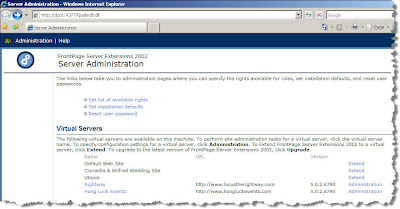
Then click on "Extend" for the web site you want to enable ASP.NET on.
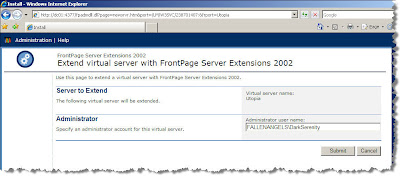
Fill in the required information then click "Submit".
Software:
IIS6
ASP .NET 2.0

Then click on "Extend" for the web site you want to enable ASP.NET on.

Fill in the required information then click "Submit".
Software:
IIS6
ASP .NET 2.0
Sunday, January 6, 2008
Using FLV video on the web
A lot of the videos these days being streamed on the web is comprised of FLV format (Flash Video). It's easy to see why because it is so customizable. What I like about it the most is that it is easily manipulated within Flash. Just a great format.
While working with FLV for the first time awhile ago, there was one problem I had encountered that had me quite concerned at the time. I was trying to create a simple html file with a FLV video embedded in it using Dreamweaver. I inserted a SWF file into the html page as I always do with any Flash SWF file, but when I went to test the page by using "Preivew in ..." it didn't work. A "white box" appears in where the video should be playing. I tried inserting just the FLV video into dreamweaver directly, same result. I checked the SWF file and that played fine on it's own. I then used Flash to publish the corresponding HTML file to see if that would work. Sure enough it did. That gave me some relief as I was afraid it might have been some coding in the "AC_RunActiveContent.js" file. So instead of using the preview feature in Dreamweaver, I saved the HTML file and viewed it by double clicking it. It worked.
After that I uploaded it to the web server running IIS6. Sure as the sky is blue, nothing seems to work right with technology on the first try. Being hosted on IIS, the page with the FLV video would display the "white box" again. IIS6 was somehow restricting the content. To enable FLV video playback on IIS you must add FLV as a MIME type for the particular website you hosting.
While working with FLV for the first time awhile ago, there was one problem I had encountered that had me quite concerned at the time. I was trying to create a simple html file with a FLV video embedded in it using Dreamweaver. I inserted a SWF file into the html page as I always do with any Flash SWF file, but when I went to test the page by using "Preivew in ..." it didn't work. A "white box" appears in where the video should be playing. I tried inserting just the FLV video into dreamweaver directly, same result. I checked the SWF file and that played fine on it's own. I then used Flash to publish the corresponding HTML file to see if that would work. Sure enough it did. That gave me some relief as I was afraid it might have been some coding in the "AC_RunActiveContent.js" file. So instead of using the preview feature in Dreamweaver, I saved the HTML file and viewed it by double clicking it. It worked.
After that I uploaded it to the web server running IIS6. Sure as the sky is blue, nothing seems to work right with technology on the first try. Being hosted on IIS, the page with the FLV video would display the "white box" again. IIS6 was somehow restricting the content. To enable FLV video playback on IIS you must add FLV as a MIME type for the particular website you hosting.
- Go to [Properties] of the website in IIS
- Under [HTML Headers] tab, click on [MIME Types...]
- Click [New...]
- Enter ".flv" for the Extension and "video/x-flv" for the MIME Type
Now FLV videos will play on your hosted IIS website(s).
Software:
Adobe Flash CS3
Tuesday, January 1, 2008
Sending automated email with ASP.NET
This is something I had to do a bit of digging. Since I am not a linux, php, or cgi script guru, I use ASP.NET to do all my scripting and programming. Finding solutions in ASP.NET are sometimes straight forward, but the odd time it isn't. With sending automated emails I didn't think it would be too much a problem, which it isn't if your ISP doesn't block outgoing SMTP servers transmissions. But if your ISP does, then it's a bit more of a hassle.
For an ISP that doesn't block SMTP, you can install the SMTP Server that comes with Windows Server 2003 or XP. It is a component of IIS. This is of course if you don't have MS Exchange. Many users tend to use the namespace System.Web.Mail for the classes used for sending email, this is fine when it comes to having an ISP that doesn't block SMTP transmissions. But still why use something that is now a bit outdated? Namespace System.Net.Mail which was introduced in ASP.NET 2.0 has more functionality and flexibility when it comes to sending emails. One of the more important features being able to supply credentials to a specified SMTP server. This will then allow you to utilize your ISP's SMTP Server and send emails.
So lets take a look at some simple code that will get you on your way. The following code would ideally be put under the function that handles a button click (i.e. submit button). You will have to have the namespaces System.Net and System.Net.Mail imported.
MailMessage instance used for defining the attributes and content of the email<%@ Page Language="C#" ContentType="text/html" ResponseEncoding="utf-8" %>
MailMessage message = new MailMessage(txtFrom.Text, txtTo.Text, txtSubject.Text, txtBody.Text);
SmtpClient instance used for defining the SMTP Server to be used for sending the email
SmtpClient emailClient = new SmtpClient(txtSMTPServer.Text);
Part of the System.Net namespace : NetworkCredential instance defines the user name and password used for accessing the SMTP Server in order to the send email
NetworkCredential SMTPUserInfo = new NetworkCredential(txtSMTPUser.Text, txtSMTPPass.Text);
Explicitly defines emailClient instance not to use default credentials when sending the email
emailClient.UseDefaultCredentials = false;
Set the credentials for emailClient instance with those defined by SMTPUserInfo instance
emailClient.Credentials = SMTPUserInfo;
Sends the email
emailClient.Send(message);
You can then setup ASP.NET form that will allow the user to enter in the relevant information using related ASP.NET controls.
Reference Material
http://msdn2.microsoft.com/en-us/library/system.net.mail.aspx
http://www.systemnetmail.com/
For an ISP that doesn't block SMTP, you can install the SMTP Server that comes with Windows Server 2003 or XP. It is a component of IIS. This is of course if you don't have MS Exchange. Many users tend to use the namespace System.Web.Mail for the classes used for sending email, this is fine when it comes to having an ISP that doesn't block SMTP transmissions. But still why use something that is now a bit outdated? Namespace System.Net.Mail which was introduced in ASP.NET 2.0 has more functionality and flexibility when it comes to sending emails. One of the more important features being able to supply credentials to a specified SMTP server. This will then allow you to utilize your ISP's SMTP Server and send emails.
So lets take a look at some simple code that will get you on your way. The following code would ideally be put under the function that handles a button click (i.e. submit button). You will have to have the namespaces System.Net and System.Net.Mail imported.
MailMessage instance used for defining the attributes and content of the email<%@ Page Language="C#" ContentType="text/html" ResponseEncoding="utf-8" %>
MailMessage message = new MailMessage(txtFrom.Text, txtTo.Text, txtSubject.Text, txtBody.Text);
SmtpClient instance used for defining the SMTP Server to be used for sending the email
SmtpClient emailClient = new SmtpClient(txtSMTPServer.Text);
Part of the System.Net namespace : NetworkCredential instance defines the user name and password used for accessing the SMTP Server in order to the send email
NetworkCredential SMTPUserInfo = new NetworkCredential(txtSMTPUser.Text, txtSMTPPass.Text);
Explicitly defines emailClient instance not to use default credentials when sending the email
emailClient.UseDefaultCredentials = false;
Set the credentials for emailClient instance with those defined by SMTPUserInfo instance
emailClient.Credentials = SMTPUserInfo;
Sends the email
emailClient.Send(message);
You can then setup ASP.NET form that will allow the user to enter in the relevant information using related ASP.NET controls.
Reference Material
http://msdn2.microsoft.com/en-us/library/system.net.mail.aspx
http://www.systemnetmail.com/
Software:
ASP .NET 2.0
Subscribe to:
Posts (Atom)