In order to stop the "tile" effect, you can utilize CSS.
Add the following code to any tag that can use an image as a background:
style="background-repeat:no-repeat"
When using tables, there are times you may want to have the tiling effect and times you don't. In order to specify specific cells to have the desired effect you will have to create a CSS class.
styles.css
TD.NoTile { background-repeat: no-repeat; }
You would then add the required code to any of the table cells you want:


Saturday, January 12, 2008
Having cursor change when on an image map
This took quite a bit of time to find out since there wasn't much information or help online. Creating a simple image map on a graphic for use on the web is fairly simple. Using Dreamweaver for example, you can just drag the area on the image you want to map, then fill in the required information such as: Link, Target, and Alt.
When the mouse is over an image map it will by default change into a hand cursor, usually.
If you want more advance functions out of your image map, say to open a browser window when you click on it, you can utilize the "Open Browser Window" Behavior in Dreamweaver. However, when you do this, you will notice that the cursor no longer changes when the mouse is over the image map. If you have the Link property filled out for the image map with the about Behavior, then you will notice the cursor does change, but when you click on it, it will open two windows. One for the Link property and one for the Behavior.
What I noticed, is that when the Link property is used, then the cursor will change.
So how do I put something into the Link property that won't be used when clicked on?
You have to trick the image map into believing that the Link property is filled in but not utilize the Link. You do this by entering into the Link property, "Javascript:"
Here's a more detailed example:
When the mouse is over an image map it will by default change into a hand cursor, usually.
If you want more advance functions out of your image map, say to open a browser window when you click on it, you can utilize the "Open Browser Window" Behavior in Dreamweaver. However, when you do this, you will notice that the cursor no longer changes when the mouse is over the image map. If you have the Link property filled out for the image map with the about Behavior, then you will notice the cursor does change, but when you click on it, it will open two windows. One for the Link property and one for the Behavior.
What I noticed, is that when the Link property is used, then the cursor will change.
So how do I put something into the Link property that won't be used when clicked on?
You have to trick the image map into believing that the Link property is filled in but not utilize the Link. You do this by entering into the Link property, "Javascript:"
Here's a more detailed example:

Software:
Dreamweaver CS3
Using ASP.NET with IIS
This is just a little reminder post for myself when creating web site that will use ASP.NET. For any web site on IIS to be able to utilize ASP.NET, FrontPage Server Extensions will have to be extended onto the web site. To do this go to [Adminsitrative Tools] > [Microsoft SharePoint Adminstrator].
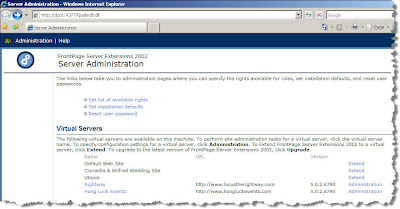
Then click on "Extend" for the web site you want to enable ASP.NET on.
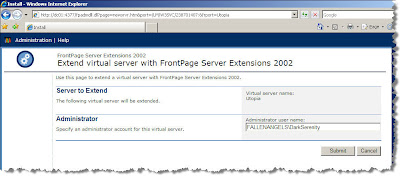
Fill in the required information then click "Submit".
Software:
IIS6
ASP .NET 2.0

Then click on "Extend" for the web site you want to enable ASP.NET on.

Fill in the required information then click "Submit".
Software:
IIS6
ASP .NET 2.0
Sunday, January 6, 2008
Using FLV video on the web
A lot of the videos these days being streamed on the web is comprised of FLV format (Flash Video). It's easy to see why because it is so customizable. What I like about it the most is that it is easily manipulated within Flash. Just a great format.
While working with FLV for the first time awhile ago, there was one problem I had encountered that had me quite concerned at the time. I was trying to create a simple html file with a FLV video embedded in it using Dreamweaver. I inserted a SWF file into the html page as I always do with any Flash SWF file, but when I went to test the page by using "Preivew in ..." it didn't work. A "white box" appears in where the video should be playing. I tried inserting just the FLV video into dreamweaver directly, same result. I checked the SWF file and that played fine on it's own. I then used Flash to publish the corresponding HTML file to see if that would work. Sure enough it did. That gave me some relief as I was afraid it might have been some coding in the "AC_RunActiveContent.js" file. So instead of using the preview feature in Dreamweaver, I saved the HTML file and viewed it by double clicking it. It worked.
After that I uploaded it to the web server running IIS6. Sure as the sky is blue, nothing seems to work right with technology on the first try. Being hosted on IIS, the page with the FLV video would display the "white box" again. IIS6 was somehow restricting the content. To enable FLV video playback on IIS you must add FLV as a MIME type for the particular website you hosting.
While working with FLV for the first time awhile ago, there was one problem I had encountered that had me quite concerned at the time. I was trying to create a simple html file with a FLV video embedded in it using Dreamweaver. I inserted a SWF file into the html page as I always do with any Flash SWF file, but when I went to test the page by using "Preivew in ..." it didn't work. A "white box" appears in where the video should be playing. I tried inserting just the FLV video into dreamweaver directly, same result. I checked the SWF file and that played fine on it's own. I then used Flash to publish the corresponding HTML file to see if that would work. Sure enough it did. That gave me some relief as I was afraid it might have been some coding in the "AC_RunActiveContent.js" file. So instead of using the preview feature in Dreamweaver, I saved the HTML file and viewed it by double clicking it. It worked.
After that I uploaded it to the web server running IIS6. Sure as the sky is blue, nothing seems to work right with technology on the first try. Being hosted on IIS, the page with the FLV video would display the "white box" again. IIS6 was somehow restricting the content. To enable FLV video playback on IIS you must add FLV as a MIME type for the particular website you hosting.
- Go to [Properties] of the website in IIS
- Under [HTML Headers] tab, click on [MIME Types...]
- Click [New...]
- Enter ".flv" for the Extension and "video/x-flv" for the MIME Type
Now FLV videos will play on your hosted IIS website(s).
Software:
Adobe Flash CS3
Tuesday, January 1, 2008
Sending automated email with ASP.NET
This is something I had to do a bit of digging. Since I am not a linux, php, or cgi script guru, I use ASP.NET to do all my scripting and programming. Finding solutions in ASP.NET are sometimes straight forward, but the odd time it isn't. With sending automated emails I didn't think it would be too much a problem, which it isn't if your ISP doesn't block outgoing SMTP servers transmissions. But if your ISP does, then it's a bit more of a hassle.
For an ISP that doesn't block SMTP, you can install the SMTP Server that comes with Windows Server 2003 or XP. It is a component of IIS. This is of course if you don't have MS Exchange. Many users tend to use the namespace System.Web.Mail for the classes used for sending email, this is fine when it comes to having an ISP that doesn't block SMTP transmissions. But still why use something that is now a bit outdated? Namespace System.Net.Mail which was introduced in ASP.NET 2.0 has more functionality and flexibility when it comes to sending emails. One of the more important features being able to supply credentials to a specified SMTP server. This will then allow you to utilize your ISP's SMTP Server and send emails.
So lets take a look at some simple code that will get you on your way. The following code would ideally be put under the function that handles a button click (i.e. submit button). You will have to have the namespaces System.Net and System.Net.Mail imported.
MailMessage instance used for defining the attributes and content of the email<%@ Page Language="C#" ContentType="text/html" ResponseEncoding="utf-8" %>
MailMessage message = new MailMessage(txtFrom.Text, txtTo.Text, txtSubject.Text, txtBody.Text);
SmtpClient instance used for defining the SMTP Server to be used for sending the email
SmtpClient emailClient = new SmtpClient(txtSMTPServer.Text);
Part of the System.Net namespace : NetworkCredential instance defines the user name and password used for accessing the SMTP Server in order to the send email
NetworkCredential SMTPUserInfo = new NetworkCredential(txtSMTPUser.Text, txtSMTPPass.Text);
Explicitly defines emailClient instance not to use default credentials when sending the email
emailClient.UseDefaultCredentials = false;
Set the credentials for emailClient instance with those defined by SMTPUserInfo instance
emailClient.Credentials = SMTPUserInfo;
Sends the email
emailClient.Send(message);
You can then setup ASP.NET form that will allow the user to enter in the relevant information using related ASP.NET controls.
Reference Material
http://msdn2.microsoft.com/en-us/library/system.net.mail.aspx
http://www.systemnetmail.com/
For an ISP that doesn't block SMTP, you can install the SMTP Server that comes with Windows Server 2003 or XP. It is a component of IIS. This is of course if you don't have MS Exchange. Many users tend to use the namespace System.Web.Mail for the classes used for sending email, this is fine when it comes to having an ISP that doesn't block SMTP transmissions. But still why use something that is now a bit outdated? Namespace System.Net.Mail which was introduced in ASP.NET 2.0 has more functionality and flexibility when it comes to sending emails. One of the more important features being able to supply credentials to a specified SMTP server. This will then allow you to utilize your ISP's SMTP Server and send emails.
So lets take a look at some simple code that will get you on your way. The following code would ideally be put under the function that handles a button click (i.e. submit button). You will have to have the namespaces System.Net and System.Net.Mail imported.
MailMessage instance used for defining the attributes and content of the email<%@ Page Language="C#" ContentType="text/html" ResponseEncoding="utf-8" %>
MailMessage message = new MailMessage(txtFrom.Text, txtTo.Text, txtSubject.Text, txtBody.Text);
SmtpClient instance used for defining the SMTP Server to be used for sending the email
SmtpClient emailClient = new SmtpClient(txtSMTPServer.Text);
Part of the System.Net namespace : NetworkCredential instance defines the user name and password used for accessing the SMTP Server in order to the send email
NetworkCredential SMTPUserInfo = new NetworkCredential(txtSMTPUser.Text, txtSMTPPass.Text);
Explicitly defines emailClient instance not to use default credentials when sending the email
emailClient.UseDefaultCredentials = false;
Set the credentials for emailClient instance with those defined by SMTPUserInfo instance
emailClient.Credentials = SMTPUserInfo;
Sends the email
emailClient.Send(message);
You can then setup ASP.NET form that will allow the user to enter in the relevant information using related ASP.NET controls.
Reference Material
http://msdn2.microsoft.com/en-us/library/system.net.mail.aspx
http://www.systemnetmail.com/
Software:
ASP .NET 2.0
Year 2008
Well, having started blogging in late 2007, I have to admit I haven't used it as much as I would like. So for 2008, I hope to get it off to a better start and start blogging some more.
Tuesday, November 6, 2007
MOSS 2007: Event ID: 2424 - The update cannot be started because the content sources cannot be accessed. Fix the errors and try the update again.
For those of you who have encountered this error, know that it is quite annoying. This is the error:


This error is basically saying that there is not enough permission for the account that is trying to access the content related to "Windows SharePoint Services Help Search".
Under the Central Administration go to Operations and then Services on Server.
In Windows SharePoint Services Help Search you'll notice 2 accounts. One being the Service Account and the other being the Content Access Account. These 2 accounts are configured at the beginning of the SharePoint installation when you define the accounts that are being used. If you look at your SQL server, you'll notice that these two accounts have identical permissions (if you haven't changed anything that is).
Because this error specifically says "content sources", the account in question will be the "Content Access Account". I've gone from giving this account read access for all content databases to even giving it owner permissions as a last resort and nothing worked.
After a bit of searching on the net, I changed the Content Access Account to use the exact same account as the Service Account and it worked. No more error message.
Now, I would love to bring this to Microsoft and ask them exactly why this works as both accounts had the same permissions in the SQL server. But knowing them they'll charge me just for asking this question. Although the problem is solved, it bothers me that I don't know exactly why it is fixed using this method. The Service Account must have some extra privileges elsewhere that I am not aware of that are different from the Content Access Account. Hopefully, I will eventually come across the answer to this. But for those of you who are encountering this same problem. Make the Service Account the Content Access Account as well and all should be good.

Friday, October 26, 2007
MOSS 2007: The trial period for this product has expired
I just had a hellish week repairing MOSS 2007. Details will follow when I have completely recuperated from the ordeal. However, I thought I'd post a little problem that I encountered with MOSS 2007 that seems to be a common bug. At first, I didn't think it was little, actually I was "sweating bullets" when I saw it because I had just successfully brought back MOSS 2007 after it was completely down. So seeing this error didn't help. In any case I saw this error message, "The trial period for this product has expired" when I was editing the master page of a SharePoint site. It would not let me check it back in, or publish it (I am running MOSS 2007 Enterprise).
So I did a bit of searching across the net and didn't have problems finding information on it in terms of people talking about it. It seems to be a problem quite a few users were facing. And what makes it even harder to diagnose is that there are multiple reasons for this error. If MOSS 2007 is installed on a DC for example, then a different fix will need to be applied. For my situation that fix did not apply because I have two-machine setup so far. One being the web front end and the other being the SQL database.
To cut a long story short, I did a repair on the MOSS 2007 web front end because I was out of options as the time it was down. So I tried many things, repair being one of them. Now apparently if you do a repair, it seems to only try and fix any damaged or corrupted files but does nothing to the registry (I'm assuming). I had to run the configuration wizard in order to fix the error for "The trial period for this product has expired". The configuration wizard basically updated the registry and all settings that seemed to have been lost during the repair. So while I am still unsure of exactly what caused it, this is my guess.
So, if you encounter this error AFTER a repair of MOSS 2007, remember to run the configuration wizard right away with all the default settings.
So I did a bit of searching across the net and didn't have problems finding information on it in terms of people talking about it. It seems to be a problem quite a few users were facing. And what makes it even harder to diagnose is that there are multiple reasons for this error. If MOSS 2007 is installed on a DC for example, then a different fix will need to be applied. For my situation that fix did not apply because I have two-machine setup so far. One being the web front end and the other being the SQL database.
To cut a long story short, I did a repair on the MOSS 2007 web front end because I was out of options as the time it was down. So I tried many things, repair being one of them. Now apparently if you do a repair, it seems to only try and fix any damaged or corrupted files but does nothing to the registry (I'm assuming). I had to run the configuration wizard in order to fix the error for "The trial period for this product has expired". The configuration wizard basically updated the registry and all settings that seemed to have been lost during the repair. So while I am still unsure of exactly what caused it, this is my guess.
So, if you encounter this error AFTER a repair of MOSS 2007, remember to run the configuration wizard right away with all the default settings.
Subscribe to:
Posts (Atom)